macOS Installation Guide
Follow these steps to install CLUBCORE on your Mac.
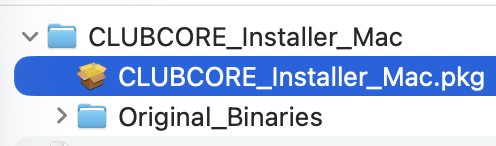
Run the Installer
Double-click the downloaded CLUBCORE_Installer_Mac.pkg file to begin the setup.
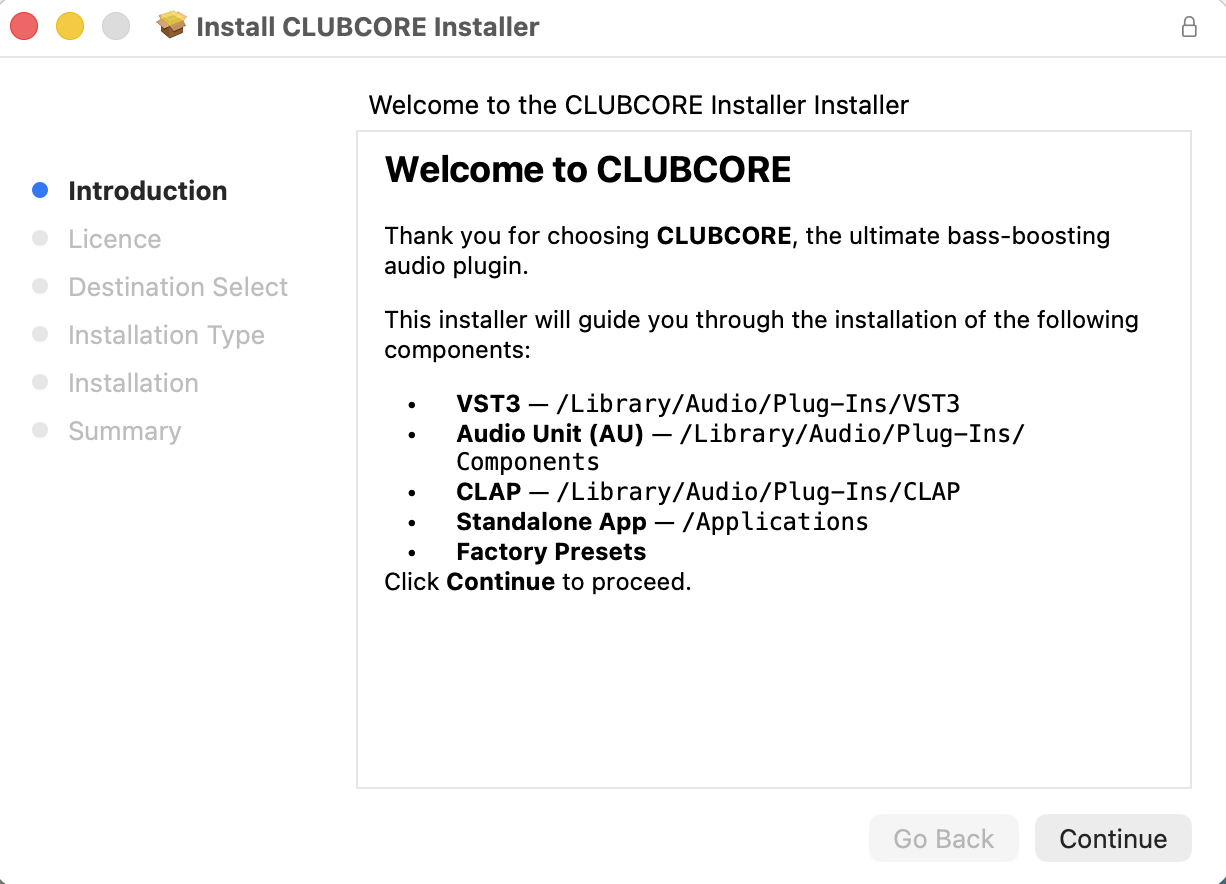
Introduction
Read the welcome screen and click "Continue".
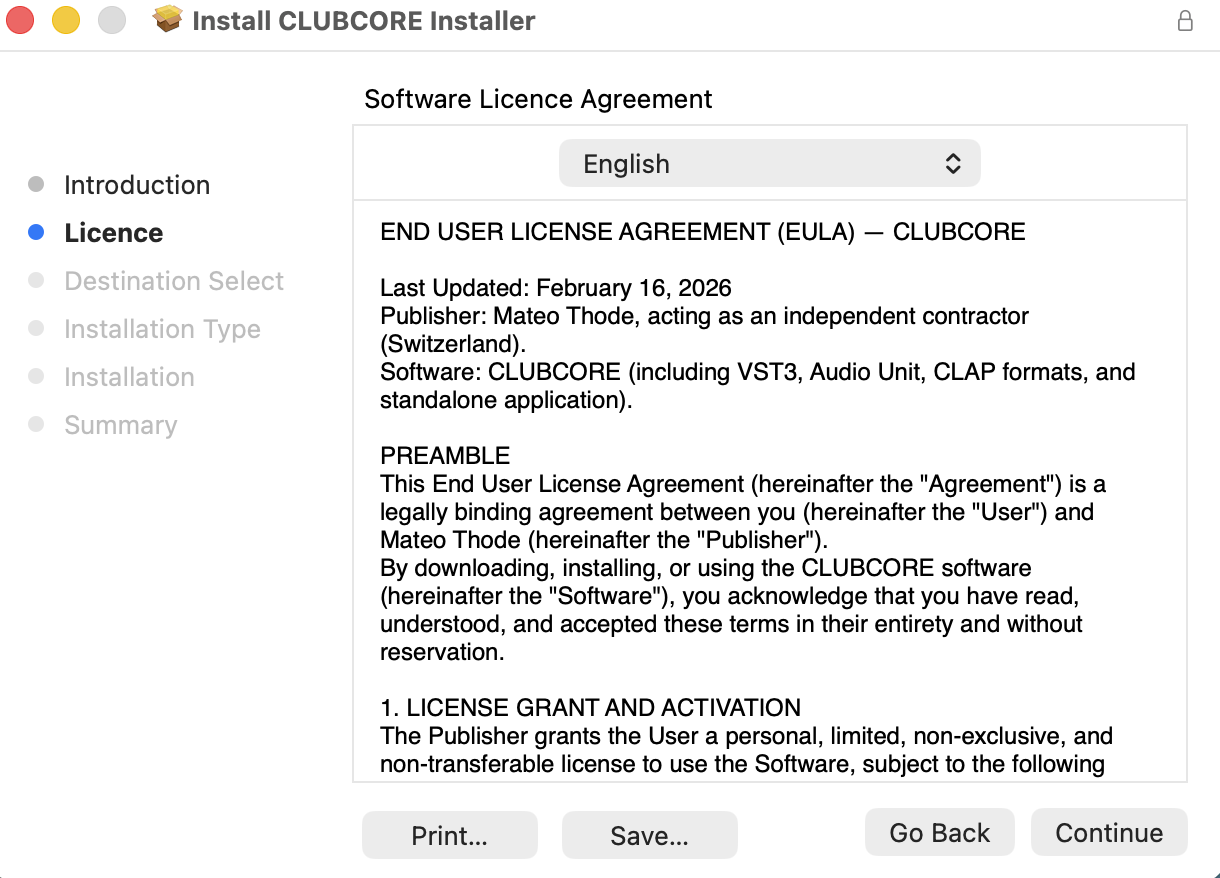
License Agreement
Read and understand the software license agreement, then click "Continue".
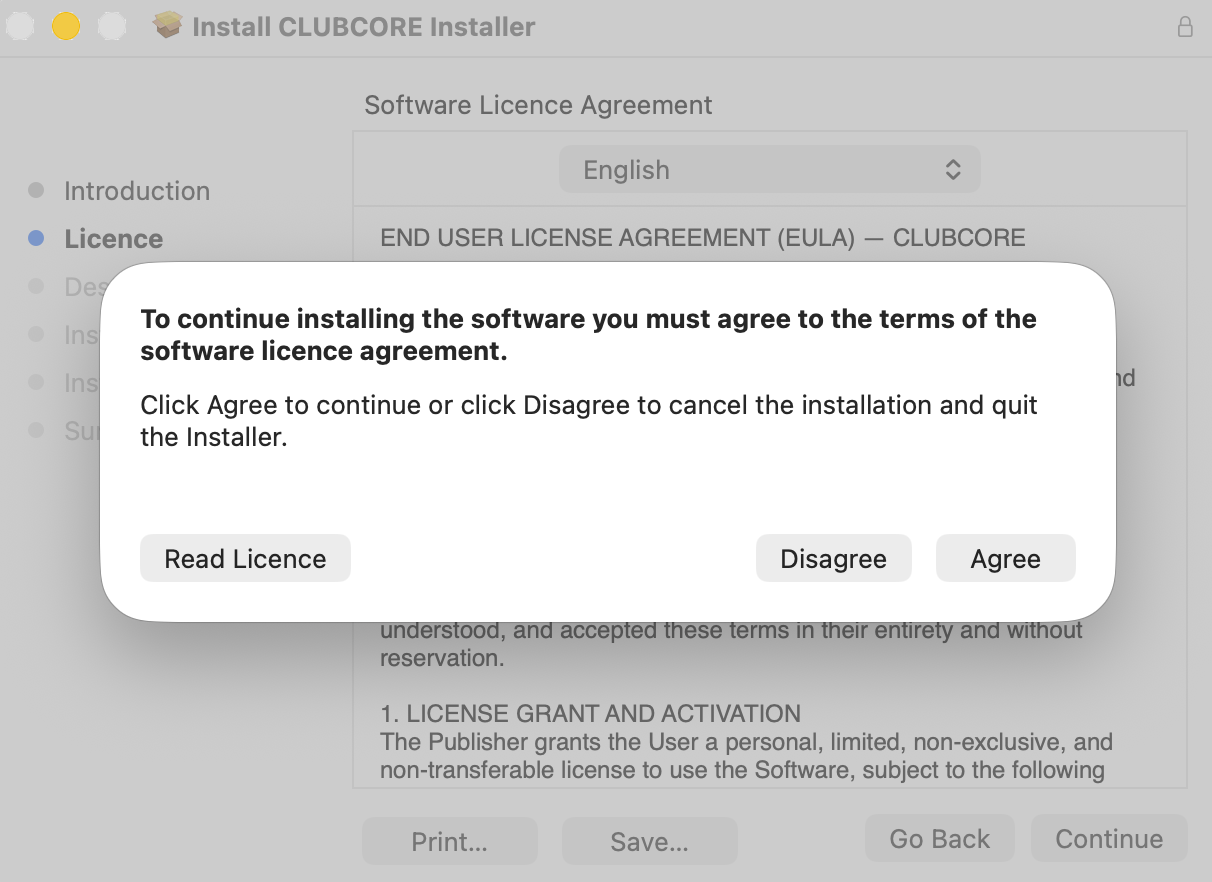
Agree to Terms
Click "Agree" in the popup to accept the terms of the software license agreement.
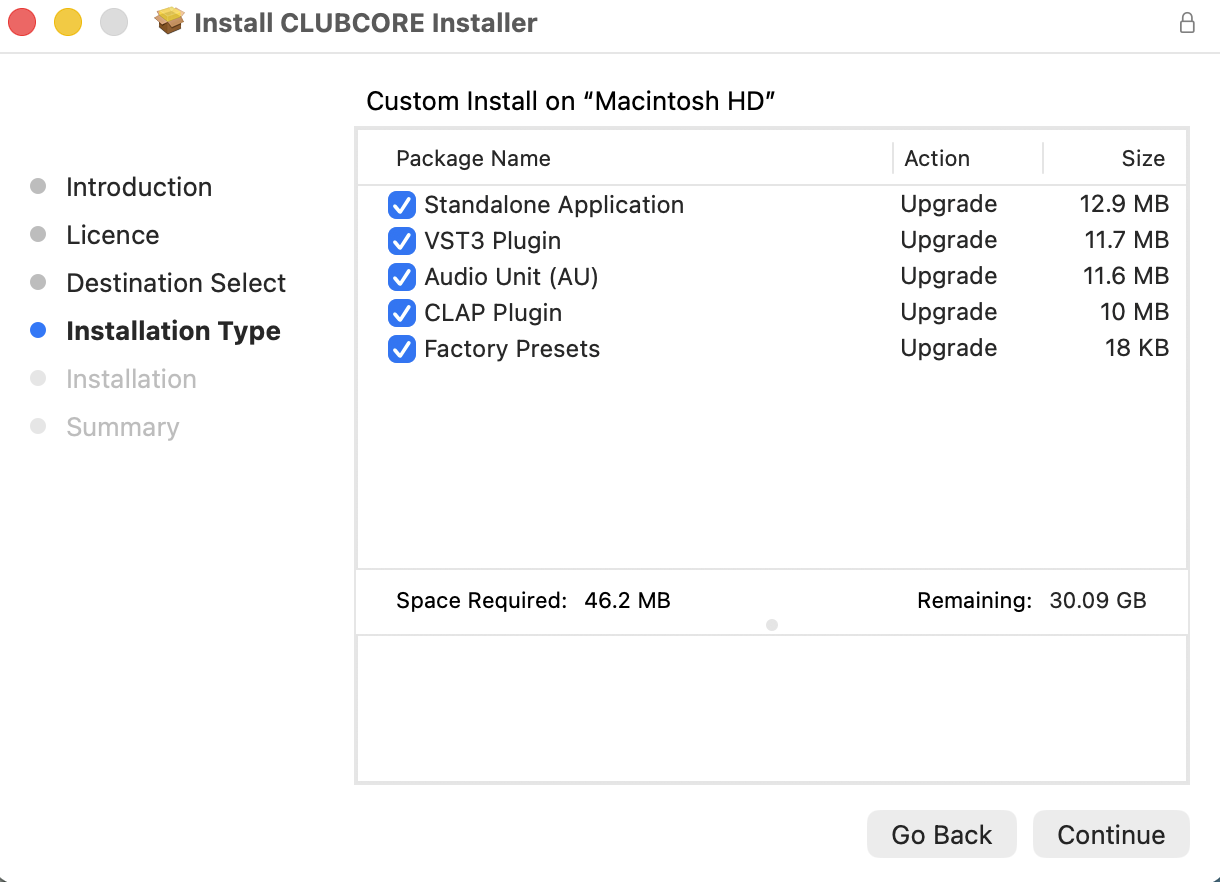
Select Plugin Formats
Select the plugin formats you wish to install. Leaving all boxes checked is highly recommended. Click "Continue".
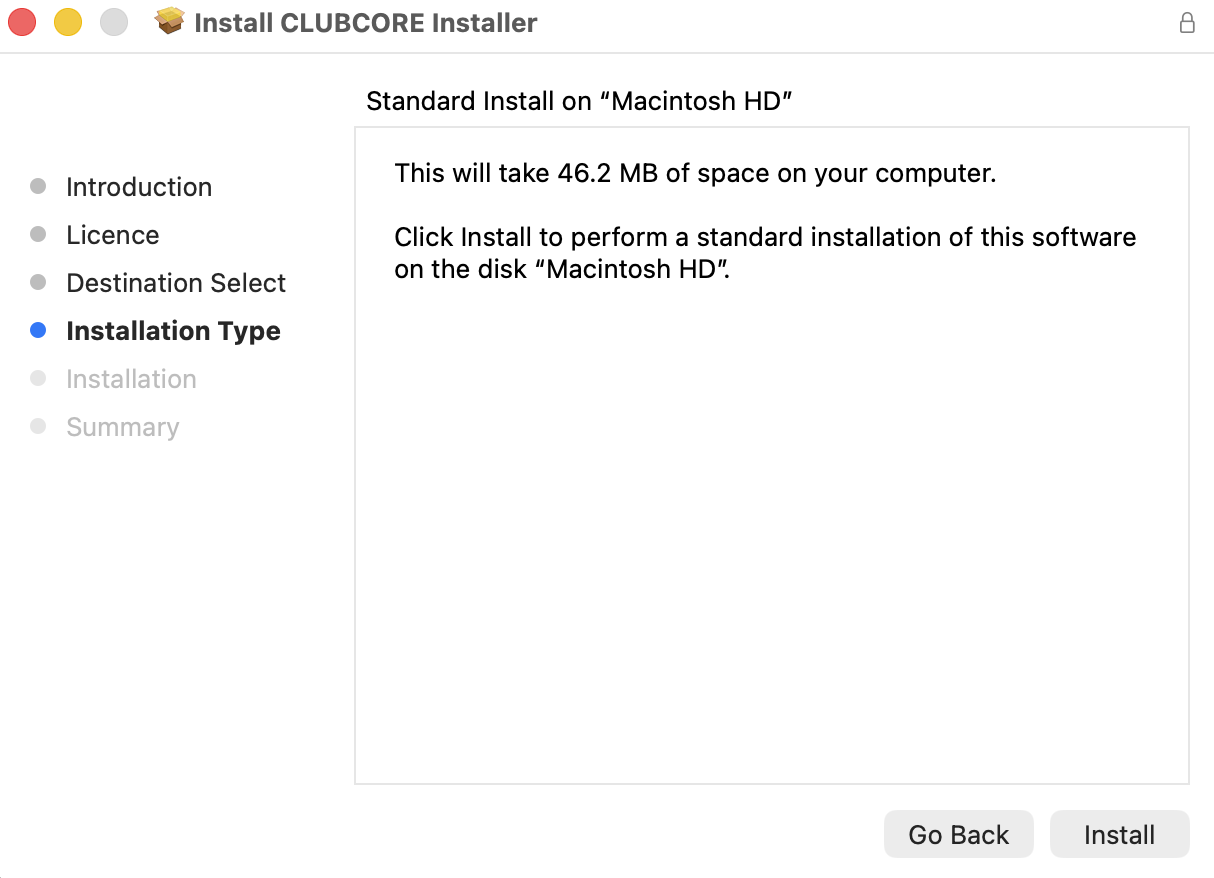
Standard Install
Review the installation location and click "Install".
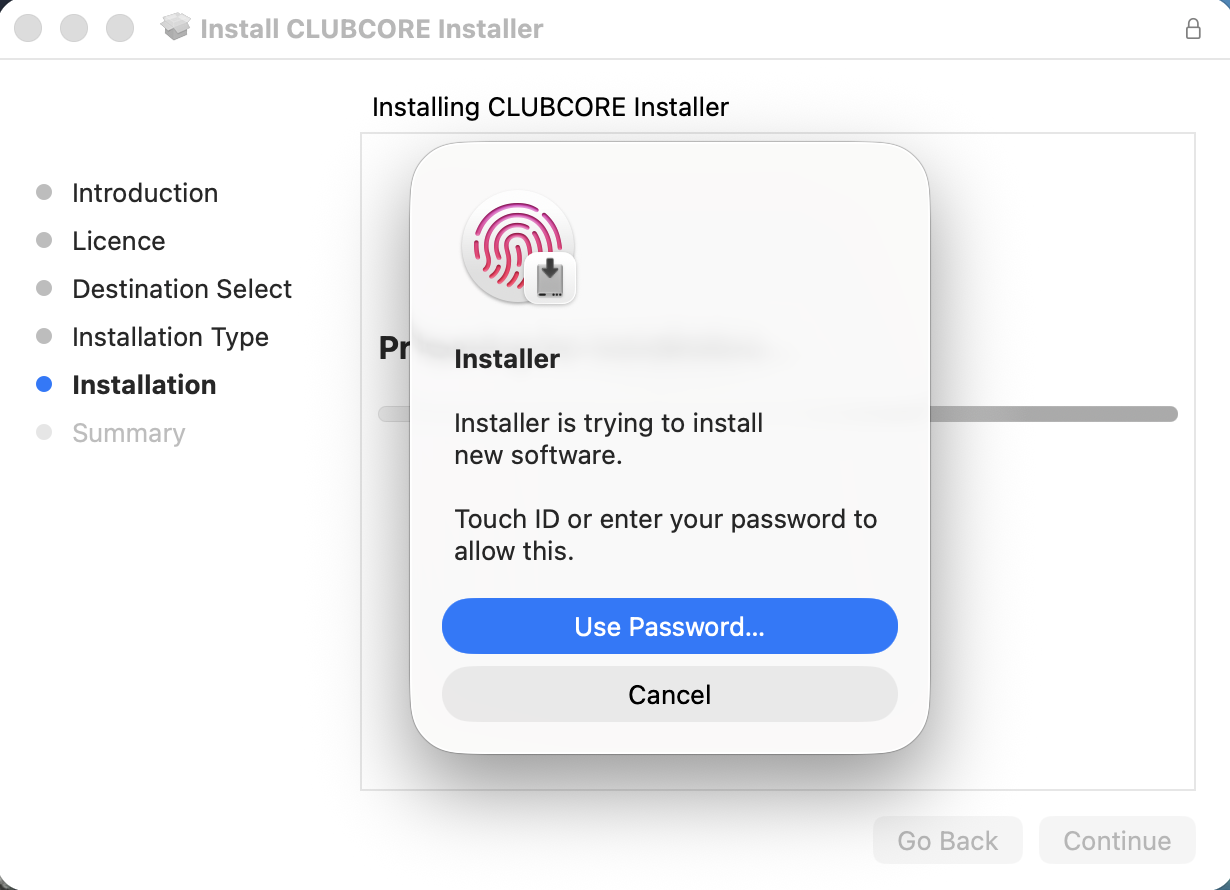
Authentication
If prompted, click "Use Password..." to authorize the installation.
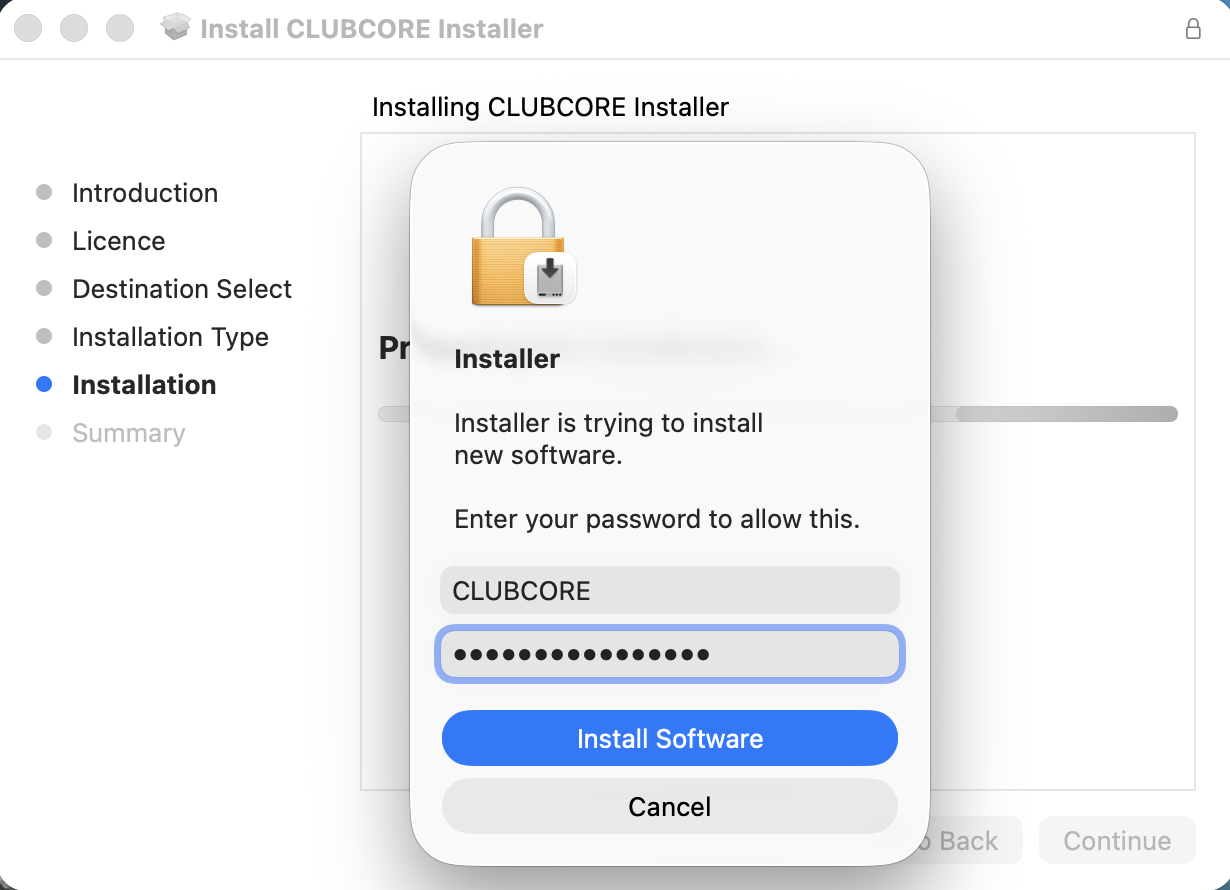
Enter Password
Enter your Mac user session password and click "Install Software".
Restart Your Mac
Restart your Mac. This is highly recommended to ensure CLUBCORE is properly scanned and detected by your DAWs.
A restart is highly recommended after installation
This ensures all DAWs (FL Studio, Ableton, Cubase…) properly detect the newly installed plugin formats.
Microphone Access
When launching the CLUBCORE Standalone app for the first time, you must click "OK" or "Allow" when it asks for microphone access. This is required by macOS to process live audio inputs.
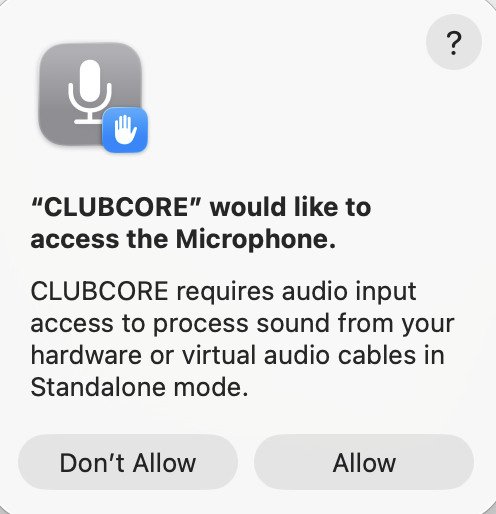
Troubleshooting: No Audio Input in Standalone?
If you accidentally denied microphone access when launching the app, the standalone version will not be able to receive audio. To fix this, follow these steps:
- Click the Apple logo in the top-left corner of your screen.
- Select "System Settings...".
- Scroll down and click on "Privacy & Security" in the left sidebar.
- Click on "Microphone" in the right pane.
- Find CLUBCORE in the list and toggle the switch to ON (blue).
- Close and reopen the CLUBCORE Standalone application.
Installation Complete?
Now that CLUBCORE is ready on your Mac, learn how to configure it for studio mastering or set it up for live DJ performances.
Discover Practical Use CasesStill having issues? Contact us at contact@clubcore.live